How to Sync Xero Payments With Your Bill Pay Platform
Connect Xero and Melio to enter data once and keep your books and payments in sync.

Key takeaways
- Connect Xero and Melio once to sync bills, invoices, vendors, and payments both ways.
- Enter your data a single time and let it update automatically in both platforms every hour.
- Reduce reconciliation errors by letting incoming payments match the right invoice automatically.
- Set up the sync in four steps from Melio’s Settings under Accounting Software Sync.
How the Melio and Xero sync works
The Melio and Xero sync is a two-way connection that keeps your bills, invoices, vendors, and payments matched across both platforms. Enter your data once and it updates automatically in both.
When it comes to handling your business finances, it’s common to input the same data into more than one system, such as your accounting software and your payments solution. That manual process is inefficient, error-prone, and can even be costly in late fines and other penalties.
Melio already offers sync with QuickBooks. Now it also syncs both accounts payable and receivable (AP and AR) with leading small business accounting software Xero.
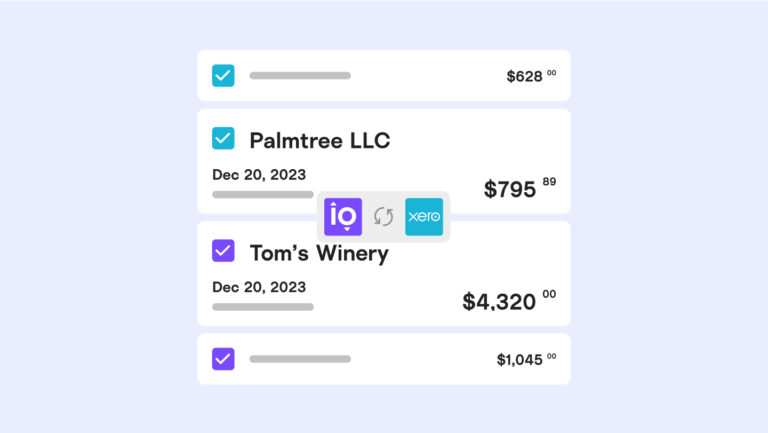
As soon as you connect your two accounts, any open bill or invoice you add to Xero is automatically added to Melio. When you send or receive a payment through Melio, it also appears in Xero without any extra work. The sync occurs automatically every hour and can also be triggered manually through Melio’s website.
Three ways syncing Xero and Melio helps your business
Syncing your accounting and payment tools saves time, cuts errors, and gives you clearer visibility. Here are three ways it helps, whether you’re a small business or an accounting firm.
Save time
You no longer need to input your bills, payments, and invoice information into separate platforms. You only need to do it once, and it automatically appears in both Xero and Melio. That means fewer errors and inconsistencies to track down and correct later.
Eliminate confusion
Reconciliation in AR is a major pain. When you sync invoices with Xero, they appear in Melio, where you can send payment requests to customers. Payments made through those requests are matched to the right invoice on both platforms. That removes the guesswork and keeps your accounts balanced.
Plan ahead
With all incoming and outgoing payments in front of you on every platform, you gain much greater visibility. This helps you improve tracking and manage your cash flow, so you’re never caught off guard when a payment is due.
What syncs between Xero and Melio
Melio and Xero run a two-way sync of your core accounts payable and receivable data, so you enter it once and it stays matched in both places.
- Bills: when you create, edit, or mark a bill as paid in one tool, it updates in the other.
- Invoices: invoices sync so incoming payments land against the right invoice.
- Vendors: vendor details import from Xero, and matching vendors are flagged so you avoid duplicates.
- Payments: scheduled and completed payments appear in both Melio and Xero.
How to connect Xero to Melio
Connecting Xero to Melio takes four quick steps and starts the two-way sync right away:
- Log in to Melio.
- Go to Settings.
- Choose Accounting Software Sync.
- Click Connect under Xero and put in your login information when prompted.
Ready to stop double-entering data? Sign up for Melio to connect Xero and keep your books current and your payments on track.
Xero and Melio FAQs
Does Melio work with Xero?
Yes. Melio connects to your Xero account so your contacts, invoices, and payments sync automatically between both platforms.
How often does Melio sync with Xero?
The sync runs automatically every hour, and you can also trigger it manually at any time.
Is the Melio and Xero sync two-way?
Yes. Changes to bills, invoices, vendors, and payments update in both Melio and Xero.
What other accounting software does Melio integrate with?
Along with Xero, Melio syncs with QuickBooks Online, QuickBooks Desktop, and NetSuite.
*This blog post is intended for informational purposes only and is not intended as financial advice.
**Melio does not provide legal, tax or accounting advice, and you should consult with a professional advisor before making any financial decisions.

9 Must-Have Tools For Virtual Bookkeepers And Accountants
Discover the essential tools that help virtual bookkeepers work faster, safer, and with far less manual busywork.

Vendor Onboarding Best Practices for Small Businesses
See how a simple vendor onboarding process helps you vet, set up, and pay new vendors with ease.

5 Ways Small Businesses Can Fight Back Against Inflation
Learn practical ways to protect your margins and cash flow when inflation pushes your business costs higher.